


Expose Jupyter commands to browser agents as WebMCP tools.
WebMCP is a browser API (document.modelContext) that lets a web page register tools that agents can discover and call. This extension turns the commands of a Jupyter page into WebMCP tools, to work with notebooks, files, kernels and dialogs. It works in JupyterLab, Jupyter Notebook 7 and JupyterLite, and has no server part: the tools run in the browser tab. Most notebook and file tools come from jupyterlab
agent ──MCP──> browser bridge ──CDP──> Jupyter page in Chrome
               (Playwright MCP,        └─ WebMCP tools of jupyter-webmcp
                chrome-devtools-mcp)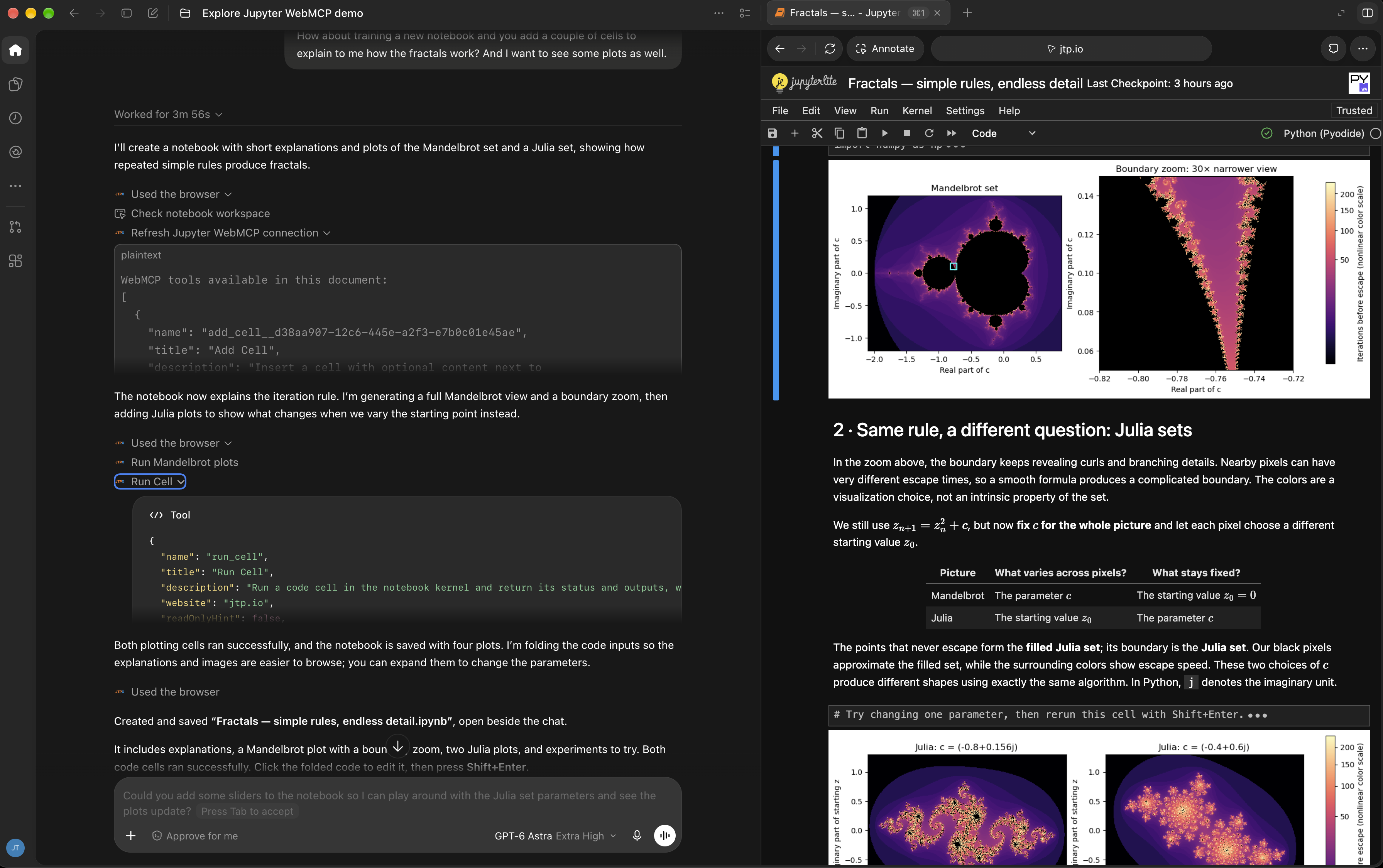
Try it
Try the extension in your browser with JupyterLite, without installing anything:
Open it in one of these browsers:
The built-in browser of the ChatGPT desktop app, for the plans and models that have site tools: ask ChatGPT to use the tools of the page.
Chrome with WebMCP enabled (see the requirements). Run the tools by hand in DevTools, or connect an agent: the demo notebook explains how.
The same site also serves the Jupyter Notebook interface. The site is deployed to GitHub Pages from the demo folder.
Requirements
JupyterLab >= 4.6, Jupyter Notebook >= 7.6 or JupyterLite >= 0.8
jupyterlab-ai-commands >= 0.4 (a dependency of the Python package)
A browser with WebMCP enabled, for example Chrome 155 or later: turn on
chrome://flags/#enable-webmcp-testing, or start Chrome with--enable-features=WebMCP. The built-in browser of the ChatGPT desktop app has WebMCP enabled for the plans and models that have site toolsJupyter served from a secure context:
localhost,127.0.0.1or HTTPS
Without WebMCP, the extension registers no tool, and the status bar shows WebMCP: unavailable.
The extension and these docs were tested with Chrome 155, JupyterLab 4.6.4, Jupyter Notebook 7.6.3, JupyterLite 0.8.6 with the Pyodide kernel 0.8.6, and jupyterlab-ai-commands 0.4.0.
Install
pip install jupyter_webmcpOpen Jupyter in a WebMCP-enabled Chrome. In JupyterLab, the status bar shows WebMCP: 21 tools: click it, or run Show WebMCP Tools from the command palette, to list the tools.
For JupyterLite, install the package in the environment that runs jupyter lite build.
Quick start
Start Jupyter and add one of these MCP servers to your agent. Then ask, for example:
Open http://
localhost:8888 /lab ?token =… in the browser and use the WebMCP tools of the page: create a notebook that computes the first 10 Fibonacci numbers and run it.
Playwright MCP
Playwright MCP needs the Chrome flag in a configuration file, for example webmcp.json. Keep CDPScreenshotNewSurface, a default of Playwright that the flag would replace:
{
  "browser": {
    "browserName": "chromium",
    "isolated": true,
    "launchOptions": {
      "channel": "chrome",
      "args": ["--enable-features=WebMCP,CDPScreenshotNewSurface"]
    }
  }
}
npx @playwright/mcp@latest --config webmcp.jsonEach page tool becomes an MCP tool named webmcp_<name>, for example webmcp_run_cell. Playwright MCP collects the tools when it takes a snapshot of the page: after the page loads, the agent calls browser_snapshot to see them.
chrome-devtools-mcp
npx chrome-devtools-mcp@latest --isolated --categoryExperimentalWebmcp \
  --chromeArg=--enable-features=WebMCP \
  --no-categoryInput --no-categoryDebugging --no-categoryMemory \
  --no-categoryEmulation --no-categoryPerformance --no-categoryNetwork \
  --javascriptEvaluation=false
The agent calls the page tools through list_webmcp_tools and execute_webmcp_tool. The --no-category* and --javascriptEvaluation=false flags remove the tools that run scripts or send input to the page, so that the agent goes through the WebMCP tools.
More clients (the ChatGPT desktop app, Chrome DevTools, a Chrome extension, the Playwright library for scripts and tests, a running Chrome, a small CDP client, Electron): Clients.
Tools
The built-in tools are always registered:
| Tool | What it does |
|---|---|
get_context | Describes the page: documents, current editor, kernels, dialogs, pending calls |
list_all_commands | Finds commands and their argument schemas |
execute_command | Runs any command |
answer_dialog | Clicks a button of the dialog that is shown, then returns the result of the call |
wait_for_result | Waits for a pending call |
The default tools are registered while their command exists:
| Tool | What it does |
|---|---|
open_document | Shows a file to the user |
list_directory | Lists a directory |
read_file, write_file | Reads or replaces a text file |
create_file, create_notebook | Creates a text file or a notebook |
read_notebook, read_cell | Reads a notebook or one cell |
add_cell, edit_cell, delete_cell | Changes the cells of a notebook |
run_cell | Runs a cell and returns its outputs |
save_notebook | Saves a notebook |
run_code | Runs code in a kernel, outside of any notebook |
interrupt_kernel, restart_kernel | Interrupts or restarts a kernel by id |
Errors are returned as data ({success: false, error}). A call that opens a dialog or runs longer than 20 seconds returns a pending result and keeps running. See Tools for the inputs and Results for the results.
Settings
Change the settings in Settings → Settings Editor → WebMCP:
| Setting | Default | Description |
|---|---|---|
tools | [] | More command-backed tools, or replacements for the default tools |
disabledTools | [] | Tools that are not registered (globs) |
blockedCommands | the two apputils:run-* | Commands that the tools never run or list (globs) |
executionTimeout | 20 | Seconds after which a running call returns a pending result |
maxResultLength | 40000 | Maximum length of a result, in JSON characters |
See Settings for tool specs, examples and overrides.json.
Security
Anything that can reach the Chrome debugging port controls the whole browser. Use a dedicated browser profile, and keep the agent away from the scripting tools of the MCP server.
An agent that can run code can do anything that the Jupyter user can do.
blockedCommandsis a guardrail, not a sandbox: commands can run other commands. Put the guardrails of a deployment inoverrides.json.File contents and outputs can contain prompt injections. The tools that return them have
untrustedContentHint.
See Security.
Frontends
The tools of a page reach the documents that the page shows: all of them in JupyterLab and in the lab UI of JupyterLite, one in Jupyter Notebook 7 and in the notebooks UI of JupyterLite. See Frontends for the differences and the known upstream issues.
Documentation
The documentation is on Read the Docs:
Uninstall
pip uninstall jupyter_webmcpContributing
See Contributing for the development install and the tests.